 Documentation
Documentation
Documentation
Register, sign in, verify access, and manage passwords.
Last updated 31 August 2026
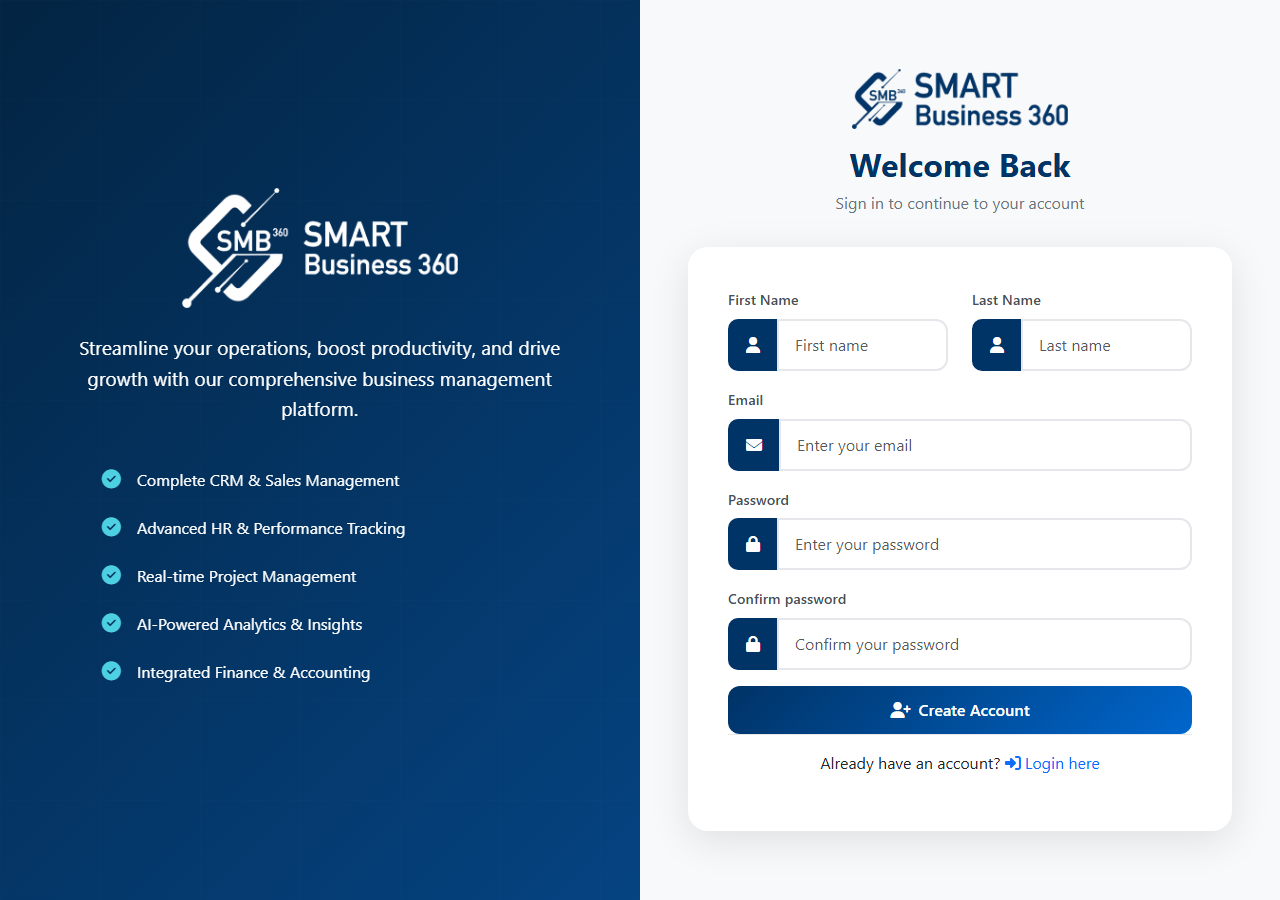
New companies start from the public trial/register page on the application host.
Existing users sign in on the application login page.
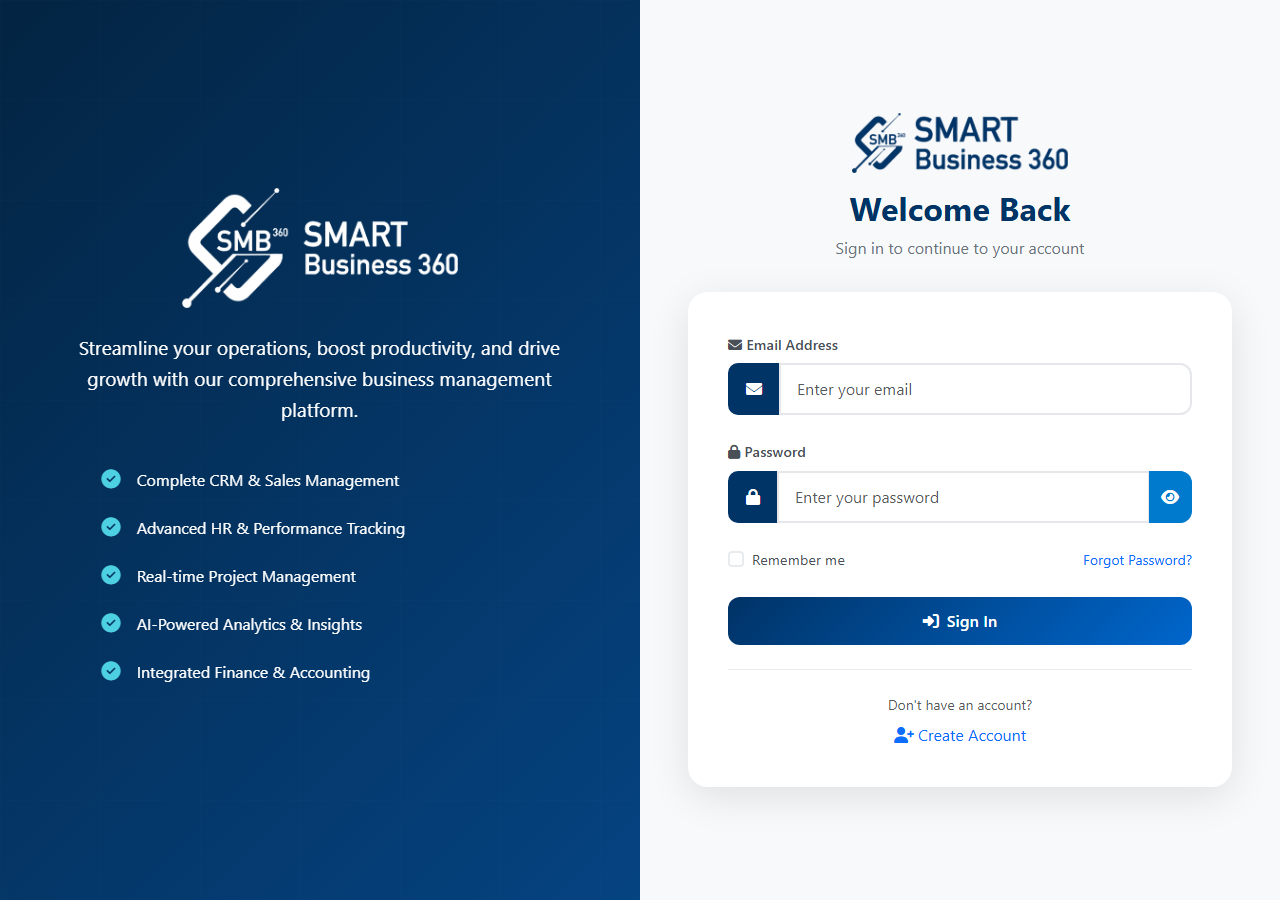
If you see a session-expired message, sign in again. The login page can show this when a previous session timed out.
Account confirmation and email-based recovery use the application’s Account workflows (register, forgot password, reset password). Complete any email or verification step the product sends before expecting full access.
Exact verification screens depend on how the tenant is provisioned. Follow the on-screen instructions rather than a generic third-party checklist.
Use Forgot Password on the login page if you cannot sign in.
Only use reset links from your own email. Do not share passwords or reset tokens.
Check spam, confirm the email is the one registered on the user record, and contact your administrator or support if the account is disabled.
Contact the Smart Business 360 team if you cannot find the right guide.